Appearance

Configuration
Some plugin configurations can be set in the Configuration dialog. Most of them are related to Connect.
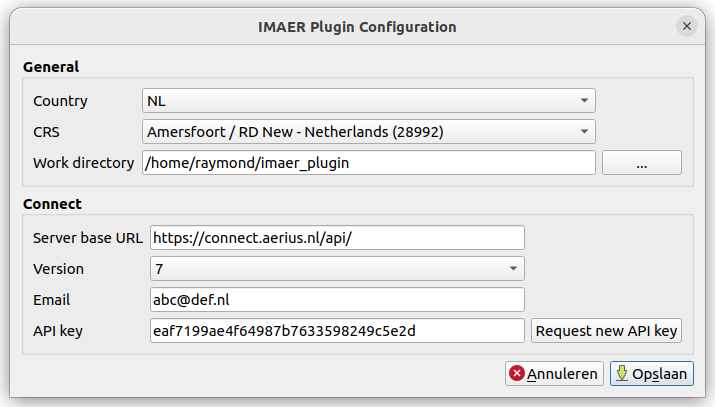
General
Country:
The country where you are using AERIUS. Different countries use different versions and sub sets of IMAER which will reflect in the user interface.
CRS:
Coordinate reference system your IMAER data should use.
Work directory:
This is the default local directory on your system where the plugin will download and save files to. Make sure you have write access to this directory.
Connect
These settings are only needed if you want to use the plugin for AERIUS Connect functionality (currently only available in NL). When the country is set to UK, the Connect settings are disabled.
Server base URL:
Location of the Connect API URL. Should by default point to the current production URL.
Some examples:
Version:
Connect server version. The version is displayed on the Connect swagger page. Just visit the Server base URL with your web browser to find it.
Email:
The email address you want to use for Connect. This is also your account name, and the address that will receive notifications when your calculations are completed.
API Key:
Connect API key that you will receive by e-mail after requesting it. You can click the Request new API key button to get (a new) one.
After receiving the new API key in your mailbox, simply copy the 32 character key to the configuration screen.
Save
When saving the settings, the plugin will attempt to make a connection by firing a few requests. They will also update the content of the connect plugin dialogs.
Hint
In case you are running into connection problems, open the Debug/Developer panel in QGIS (F12) to inspect the internet traffic between QGIS and Connect.