Appearance

Connect - Jobs
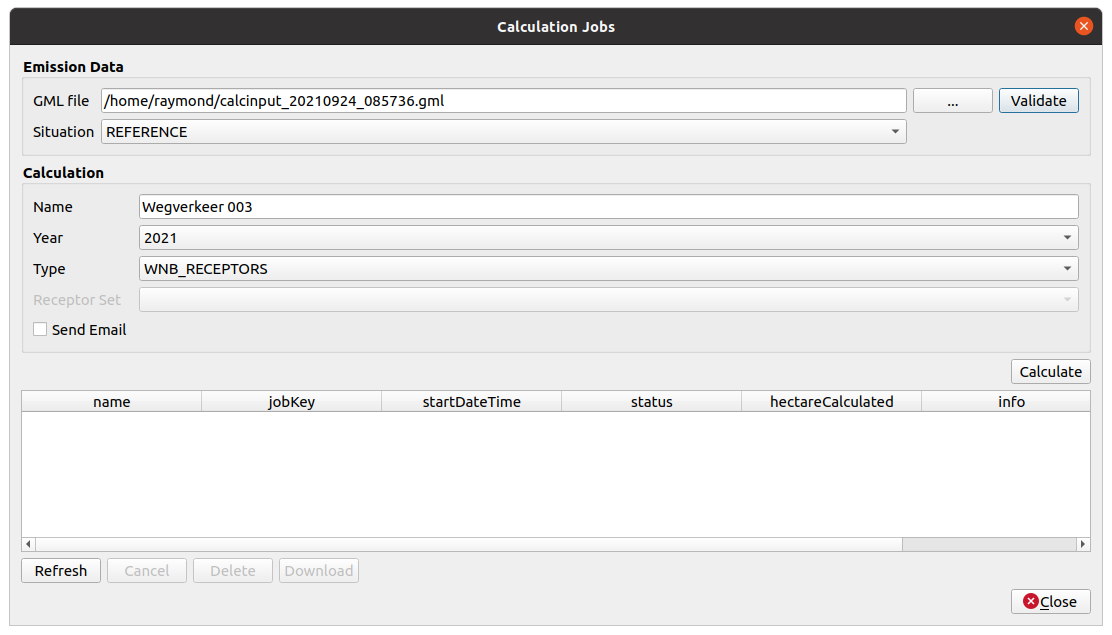
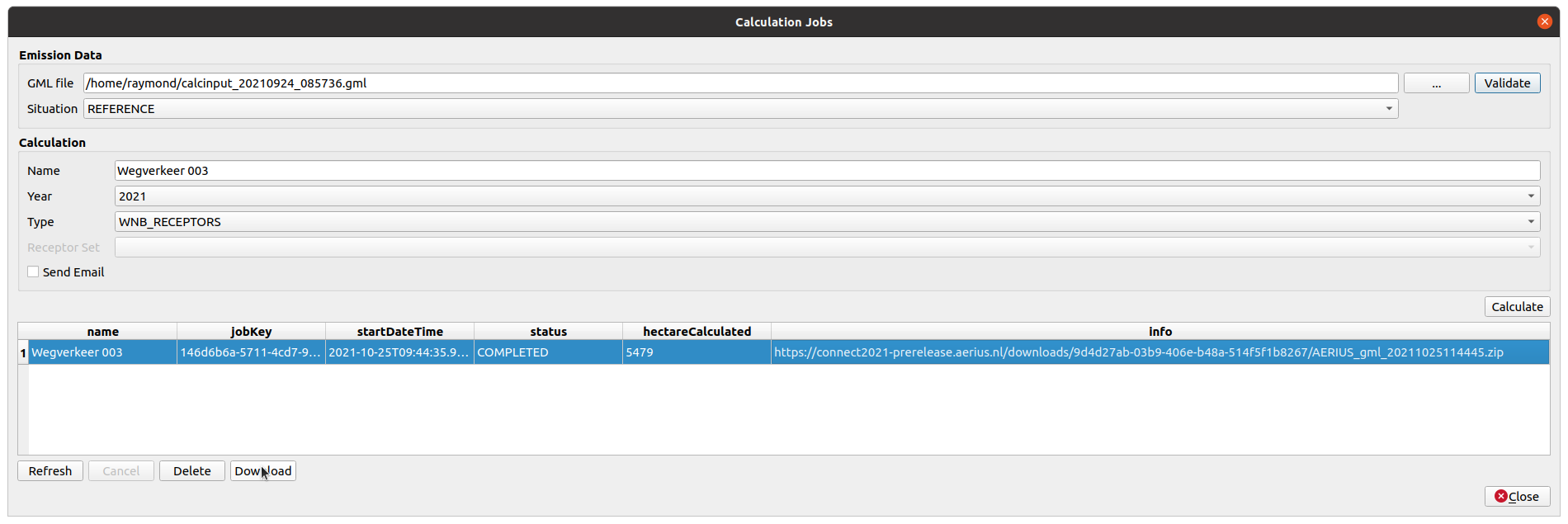
In this dialog you can start calculation jobs in Connect. The dialog displays an overview of all jobs with statuses.
Introduction
The main purpose of this sending your emission GML file to the Connect API to start a calculation. The GML can be either created with the Generate Calculator Input functionality from this plugin or generated in any other way.
Validate
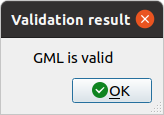
After picking the GML file it is recommended to run a validation before starting a calculation. Just hit the Validate button and wait for the result.
The validation result will be shown in a dialog like these:
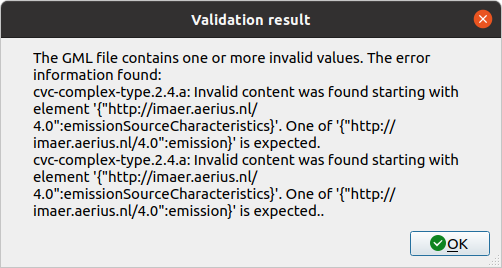
In case of an error, you can selecting the text (CTRL-A) and copy (CTRL-C) it to the clipboard.
Calculate
For starting a calculation you will need to set some input parameters:
- Situation: DEFINED_BY_FILE, REFERENCE, PROPOSED, TEMPORARY
- Name: Any name for your own reference. This will be displayed in the table
- Type:
- WNB_RECEPTORS: Normal calculation on all default Nature Area receptors.
- CUSTOM_POINTS: Pick one of your self uploaded receptor sets
- Send e-mail when calculation is completed: Check if you wish to receive an email notification when the calculation has finished
Click the Calculate button for sending your data to Connect and start the calculation.
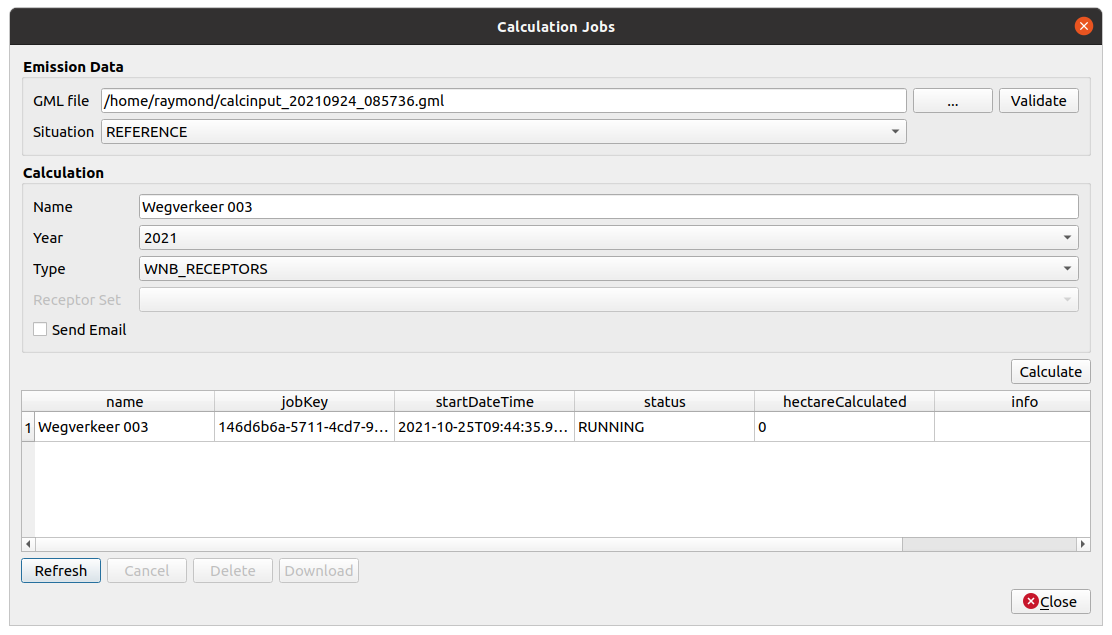
In case everything is fine, a new row will appear in the jobs table. If not, something went wrong. Make sure your GML is valid.
Jobs Table
This table is showing all the jobs on your account that are currently available on the Connect server.
- name: The name you picked when starting the calculation
- jobKey: The unique ID, set by the server
- startDateTime: Date and time your job has started
- status: Current job status: UNDEFINED, INITIALIZED, RUNNING, COMPLETED, CANCELLED, DELETED or ERROR
- hectareCalculated: Shows the calculated area for the job
- info:
- COMPLETED: shows a download link to the ZIP with calculation results
- ERROR: shows the error message
Refresh
The table will only be updated after running an action, not regularly at a certain time interval. This is to prevent the plugin to fire huge amounts of unnecessary requests to the Connect server.
Simply press Refresh to update the table content.
Cancel
Cancel an initialized or running job by selecting it in the table and pressing Cancel. Cancelled jobs will still be available on the server.
Delete
Delete jobs by selecting one (or multiple) jobs in the table and pressing Delete.
Download
Completed jobs, showing a download link in the info column, can be downloaded and added to your QGIS project by clicking Download. This is similar to downloading it manually and using the Import Calculator Result function from this plugin.